Firewall
In the Firewall section, you can configure firewall rules such as DMZ, Port Forwarding, Filter Rules, ARP Protection & IP-MAC Binding, and DDoS Protection.
Make Applications Free from Port Restriction by DMZ
DMZ allows you to expose a specific computer to the Internet, redirecting all incoming network traffic to that computer.
For example, due to some port restriction, when trying to remotely view your home network camera from your phone, you can log in to the camera’s interface normally, but cannot stream the live video or play back recordings. To solve this issue, set your camera as a DMZ host and open all ports, so that external requests can reach the device directly and enable seamless remote access.
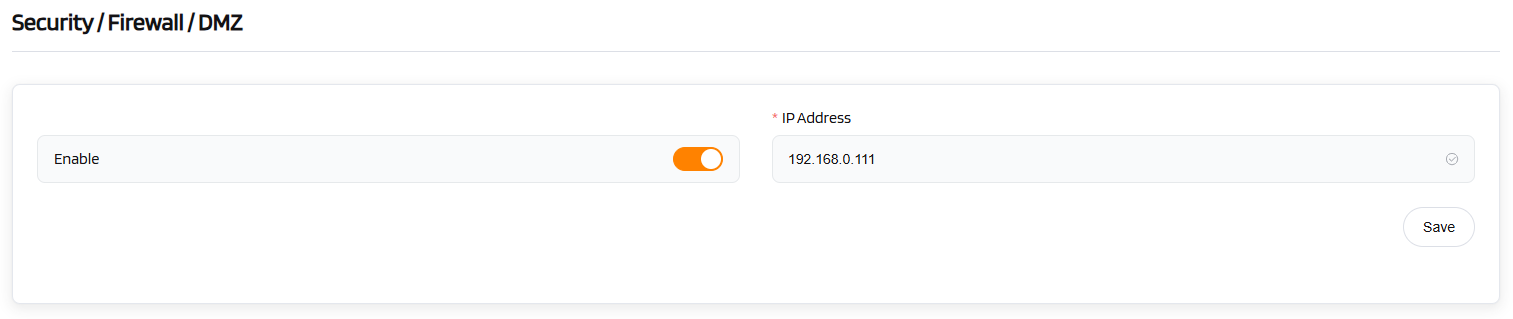
Click DMZ and enable Open DMZ.
| DMZ Settings | Configuration |
|---|---|
| Enable | [Toggle to enable] |
| *IP Address | 192.168.0.111 [Enter the IP address of the device to expose] |
| Operation | Save |
Share Local Resources on the Internet by Port Forwarding
Port Forwarding allows remote computers to access a specific device or service on the local LAN (e.g., web servers, FTP servers) that is behind the firewall.
For example, when you set up a private file-sharing server at home (like Nextcloud or SMB), you can access it normally within your local network, but cannot connect from outside. To solve this, configure port forwarding on your router to forward incoming traffic on a specific port (e.g., TCP 8080) to your computer’s internal IP address, thus securely sharing local resources over the internet.
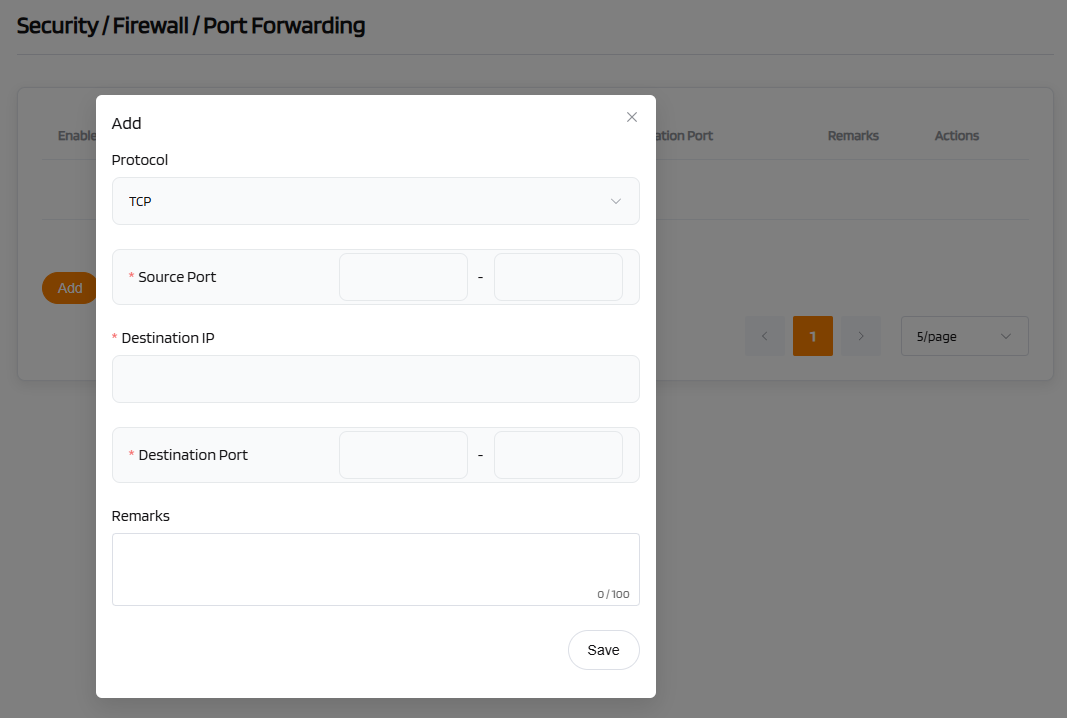
To set up Port Forwarding, click Port Forwarding and then Add.
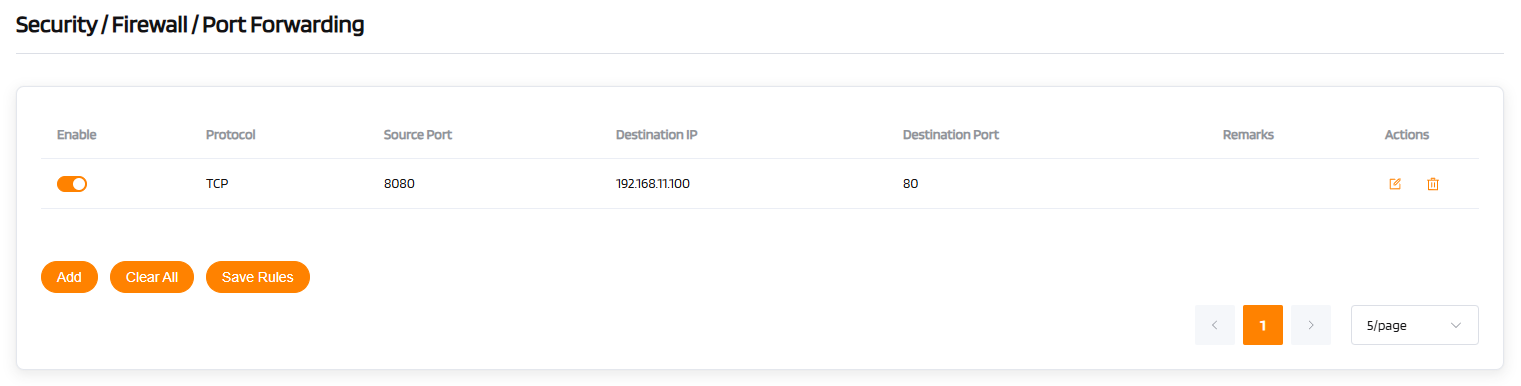
| Port Forwarding | Configuration |
|---|---|
| Enable | [Toggle to enable the rule] |
| Protocol | TCP / UDP / TCP & UDP [Select the applicable protocol] |
| Source Port | [Enter the internal port number of the device; leave blank if the same as the external port] |
| Destination IP | [Enter the IP address of the device on the LAN that requires remote access] |
| Destination Port | [Enter a specific port number or port range (e.g., 100–300)] |
| Remarks | [Add a comment for the rule (optional)] |
| Actions | Add / Clear All / Save Rules |
| Display | 5 entries per page |
Tip
Router services (e.g., web, FTP) require their respective ports to be opened on the router to be accessible from the public Internet.
Filter Rules
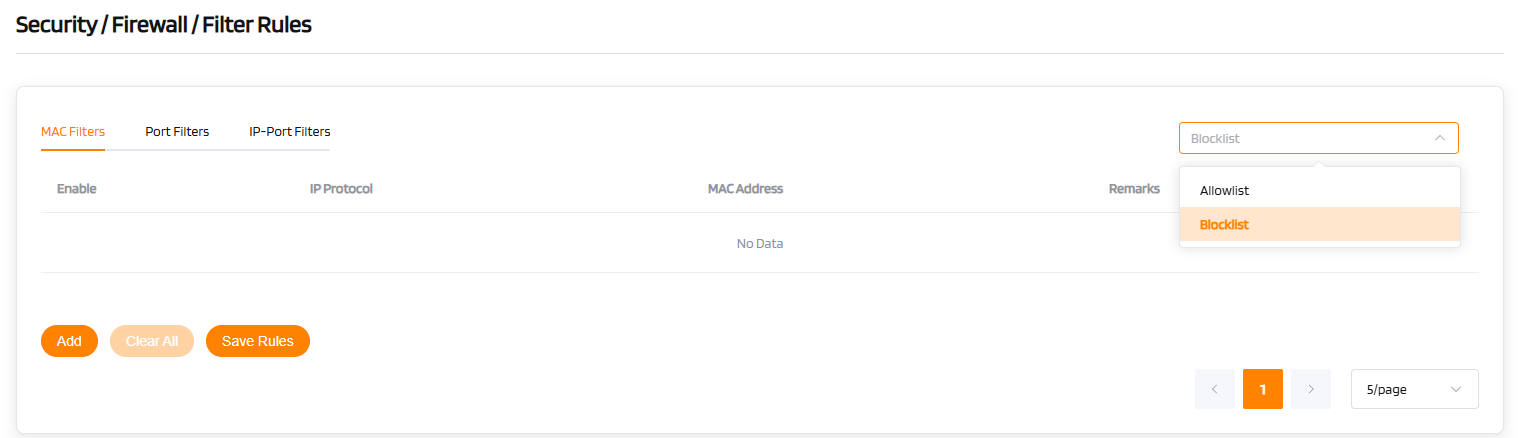
This page integrates multiple firewall rule sets, including MAC Filters, Port Filters, and IP-Port Filters.
During initial setup, you must select either whitelist or blacklist mode. The default mode is blacklist.
MAC Filters
MAC Filtering controls network access permissions based on devices' MAC addresses (physical addresses). For example, it can restrict network access to only registered devices. In whitelist mode, only devices with MAC addresses listed in the filter are allowed to access the network.
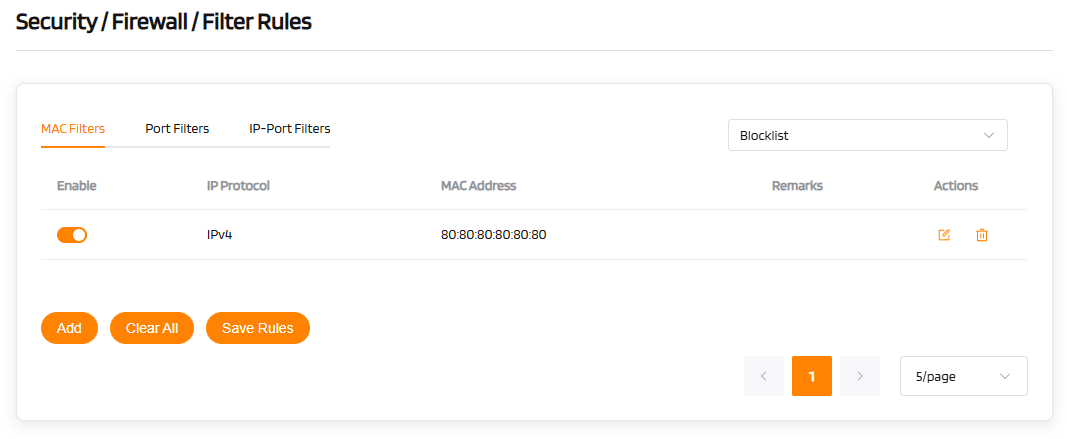
| MAC Filters | Configuration |
|---|---|
| Enable | [Toggle to enable] |
| IP Protocol | IPv4 |
| MAC Address | 80:80:80:80:80:80 [Enter the MAC address to filter] |
| Remarks | [Add a comment (optional)] |
| Actions | Add / Clear All / Save Rules |
| Display | 5 entries per page |
Port Filters
Port Filtering precisely controls network traffic based on IP + Port + Protocol rules (e.g., TCP 80). For example, it can block external access to the internal port 3389. In whitelist mode, only explicitly listed ports are accessible.
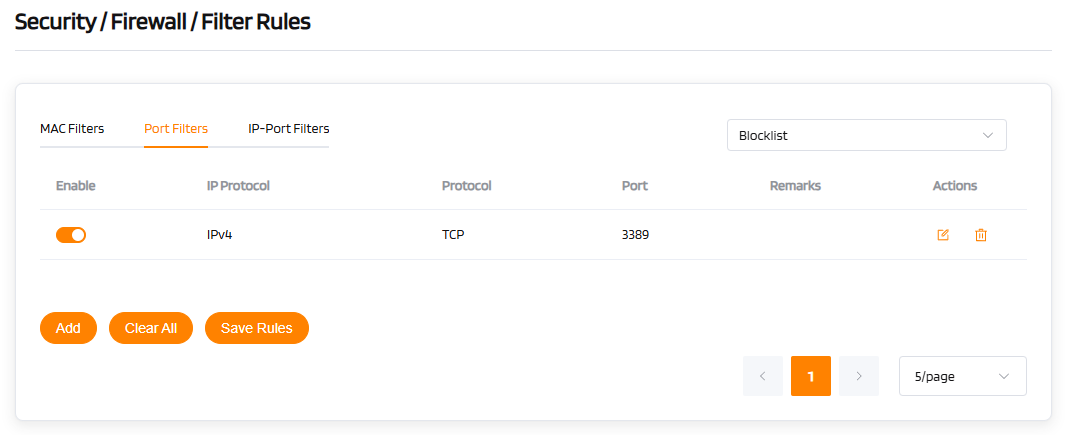
| Port Filters | Configuration |
|---|---|
| Enable | [Toggle to enable] |
| IP Protocol | IPv4 |
| Protocol | TCP / UDP / TCP & UDP [Select the protocol] |
| Port | 3389 [Enter the port number to filter] |
| Remarks | [Add a comment (optional)] |
| Actions | Add / Clear All / Save Rules |
| Display | 5 entries per page |
IP-Port Filters
IP-Port Filtering is a core firewall security mechanism that enables precise traffic control based on the combination of IP address + port number + protocol type. By defining rules (source/destination IP and port), it allows or blocks specific network access attempts—for example, preventing external networks from accessing the internal port 3389.
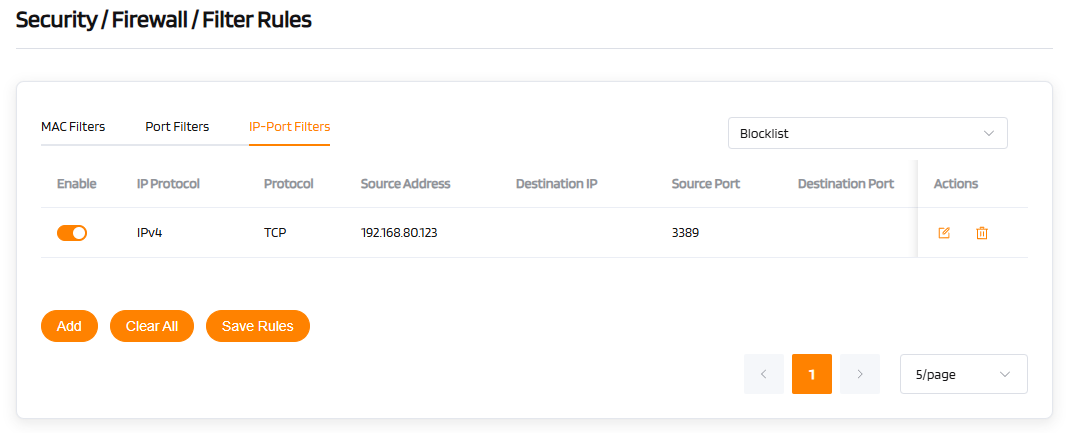
ARP (Address Resolution Protocol) Protection & IP-MAC Binding
This feature statically binds a device's MAC address (unique hardware identifier) to a specified IP address.
If the IP address assigned to a device's MAC address in the IP-MAC Binding list does not match the actual IP address obtained by the device, network connection issues may occur.
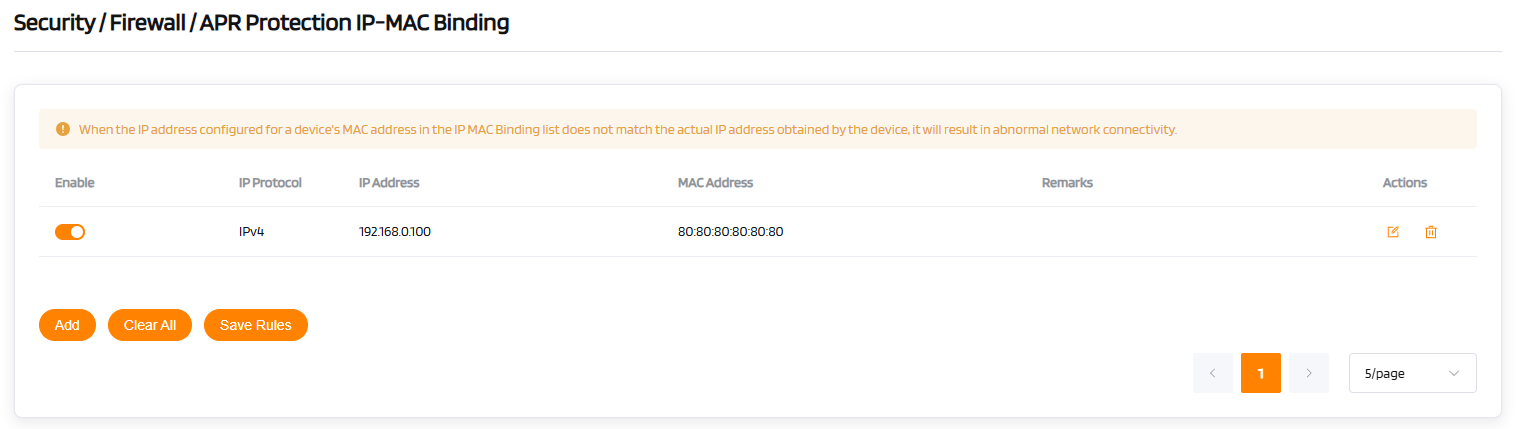
| ARP Protection & IP-MAC Binding | Configuration |
|---|---|
| Enable | [Toggle to enable] |
| IP Protocol | IPv4 |
| IP Address | 192.168.0.100 [Enter the IP address to bind] |
| MAC Address | 80:80:80:80:80:80 [Enter the corresponding MAC address] |
| Remarks | [Add a comment (optional)] |
| Actions | Add / Clear All / Save Rules |
| Display | 5 entries per page |
DDOS (Distributed Denial of Service) Protection
The DDOS Protection function effectively defends against various types of flood attacks.
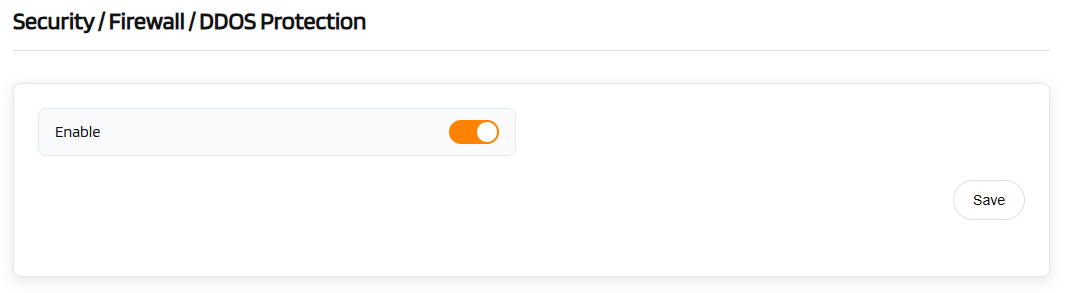
| DDOS Protection | Configuration |
|---|---|
| Enable | [Toggle to enable] |
| Operation | Save |