L2TP
VPN L2TP (Layer 2 Tunneling Protocol) Mode
Configuration
-
Toggle the Enable switch to activate the VPN service.
-
In the VPN Mode drop-down menu, select L2TP.
-
Toggle the NAT and Default Routing switches to enable these functions. This allows VPN clients to access the LAN and enables automatic traffic routing.
-
In the Server Address field, enter the public IP address or domain name of the VPN server.
-
In the Username and Password fields, enter the credentials provided by your VPN service provider.
-
In the MTU field, enter the maximum transmission unit size to optimize network performance.
Connecting to the VPN Server
Click Save to initiate the VPN connection. If the connection is successful, the page will display the VPN connection status, VPN local IP, and VPN peer IP.
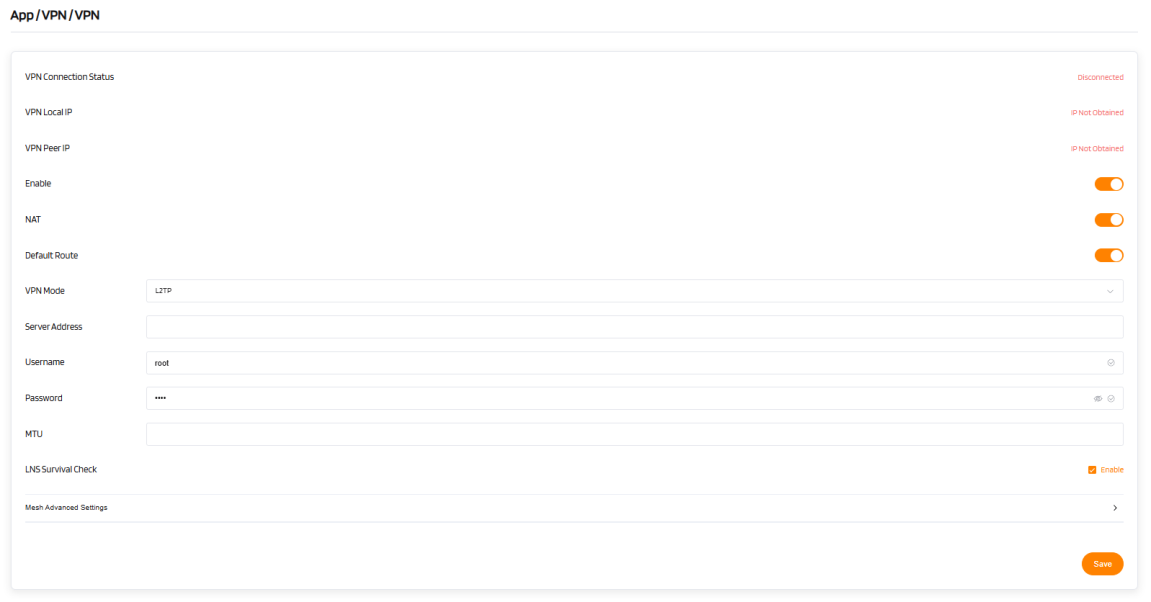
| VPN L2TP Mode | Configuration |
|---|---|
| VPN Connection Status | Disconnected (initial status) |
| VPN Local IP | IP Not Obtained (initial status) |
| VPN Peer IP | IP Not Obtained (initial status) |
| Enable | [Toggle to enable] |
| NAT | [Toggle to enable] |
| Default Route | [Toggle to enable] |
| VPN Mode | L2TP |
| Server Address | [Enter the VPN server's public IP or domain] |
| Username | [Enter the VPN username] |
| Password | [Enter the VPN password] |
| MTU | [Enter the MTU value] |
| LNS Survival Check | Enable |
| Advanced Settings | [Click to expand additional settings] |
| Operation | Save |
Warning
When hardware acceleration is enabled, the VPN function may not work properly.