VL7MX User Guide
VL7M19K Smart Router | The OpenWrt-Powered Network Brain
VLM19K is a tri-band Wi-Fi 7 portable travel router, with a maximum Wi-Fi speed of 190000 Mbps. Supporting both OpenVPN and WireGuard, VLM19K ensures robust performance. With OpenWrt + LuCI, VL7M19K gives you enterprise-grade power — in a form factor designed for the modern home.You don’t need to understand Linux — but you can control a network that’s smarter, safer, and faster than anything on the market.
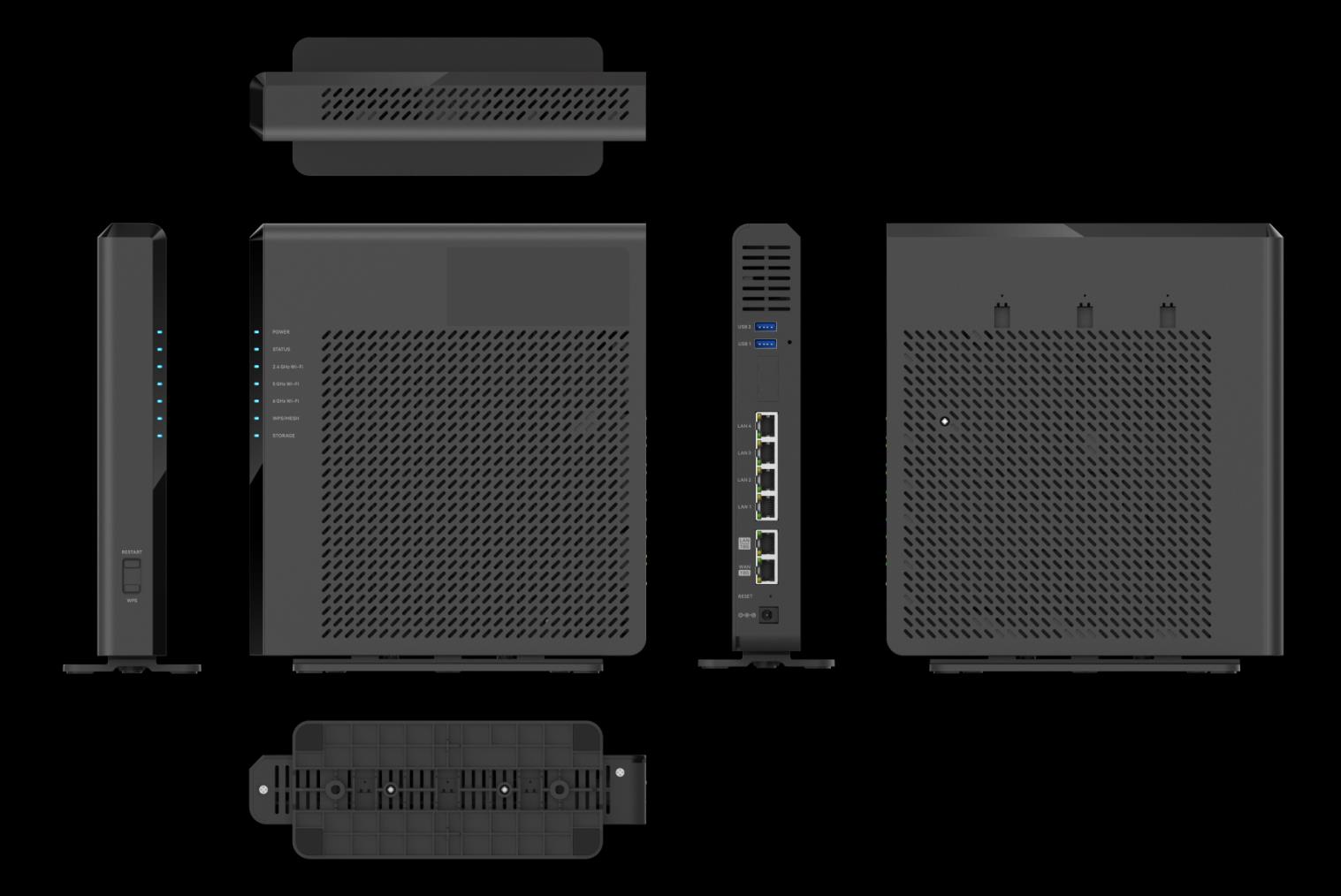
This isn’t just a router — it’s your intelligent, customizable, and future-proof network hub.
OpenWrt OS × LuCI Web Interface
You don’t need to code — you only need to control. We’ve pre-installed OpenWrt, the world’s leading open-source Linux distribution for embedded devices, and combined it with LuCI, the official graphical user interface for OpenWrt — delivering:
-
Plug-and-Play Setup: No need to flash firmware or install systems. Just plug in and access http://192.168.0.1 — your gateway to full control.
-
Intuitive, All-in-One Dashboard: Everything you need — from Wi-Fi settings and firewall rules to VPN and device management — is built into the sleek LuCI interface.
-
Future-Ready & Expandable: Use the package manager (opkg) to install advanced services like AdGuard Home, ZeroTier, Samba, LagoFast, and more — all without touching the command line.
LuCI Is Your Home Screen | The First Thing You See
Your router’s dashboard — the moment you open a browser.
- Homepage = System Overview: Real-time stats: connected devices, data usage, Wi-Fi signal health, and network status.
- One Click, Full Control: Tap into OpenVPN/WireGuard servers, MLO Wi-Fi 7, Mesh networking, DDNS, UPnP, port forwarding, and more — no tech jargon, no terminal.
- No Command Line Required: No SSH login, no vi editor. Just point, click, and go. Modern. Powerful. Accessible.
Enterprise-Grade Features
Pre-Installed, Pre-Configured Powered by the OpenWrt ecosystem, VL7M19K ships with advanced capabilities you’d normally spend hours setting up:
-
OpenVPN & WireGuard Server + Client: Set up secure private tunnels instantly — for remote work, gaming, or privacy.
-
AdGuard Home: Block ads, trackers, and malware across all devices — no app installs needed.
-
ZeroTier : Access your home devices from anywhere, as if you were on the same local network.
-
Samba File Sharing: Plug in a USB drive and share files with your PC, phone, or NAS — real-time, read/write access.
-
MLO + Wi-Fi 7: Combine 2.4GHz, 5GHz, and 6GHz bands simultaneously — up to 2× speed and zero latency.
-
Mesh Networking: Expand coverage seamlessly. Devices roam between routers without re-authentication.
Product overview
Package contents
Please note that the adapter within the package depends on your shipping country.
Your router package includes:
- 1 x User manual
- 1 x VL7M19K
- 1 x Warrenty card
- 1 x Ethernet cable
- 1 x Power adapter
Specifications
Refer to VL7M19K.
How to set up VL7M19K
To set up VL7M19K, you will use one of the three supported internet connection methods: Ethernet, Repeater or Tethering. Please refer to the manual book to set up your router first.
Power on
Plug the power cable into the power port of the router. Make sure you are using a standard 12V/3A power adapter. Otherwise, it may cause malfunction.
Connect
You can connect to the router via Ethernet cable or Wi-Fi.
Note
This step only connects your devices to the local area network (LAN) of the router. You cannot access the Internet currently. In order to connect to the Internet, please finish the setup p rocedu res below and then follow Inte rnet to setup an Internet connection.
(1) Connect via LAN
Connect your device to the LAN port of the router via Ethernet cable.
(2) Connect via WI-FI
Search for the SSID of the router in your device and input the default password: admin.
Note
The SSID was printed on the side label of the router with the following formats:
- VL7M19K-2.4G-XXX
- VL7M19K-5G-XXX
- VL7M19K-6G-XXX
Access the Web Admin Panel
Open a web browser (we recommend Chrome, firefox) and visit http://192.168.0.1 .You will be directed to the initial setup of the web Admin Panel.
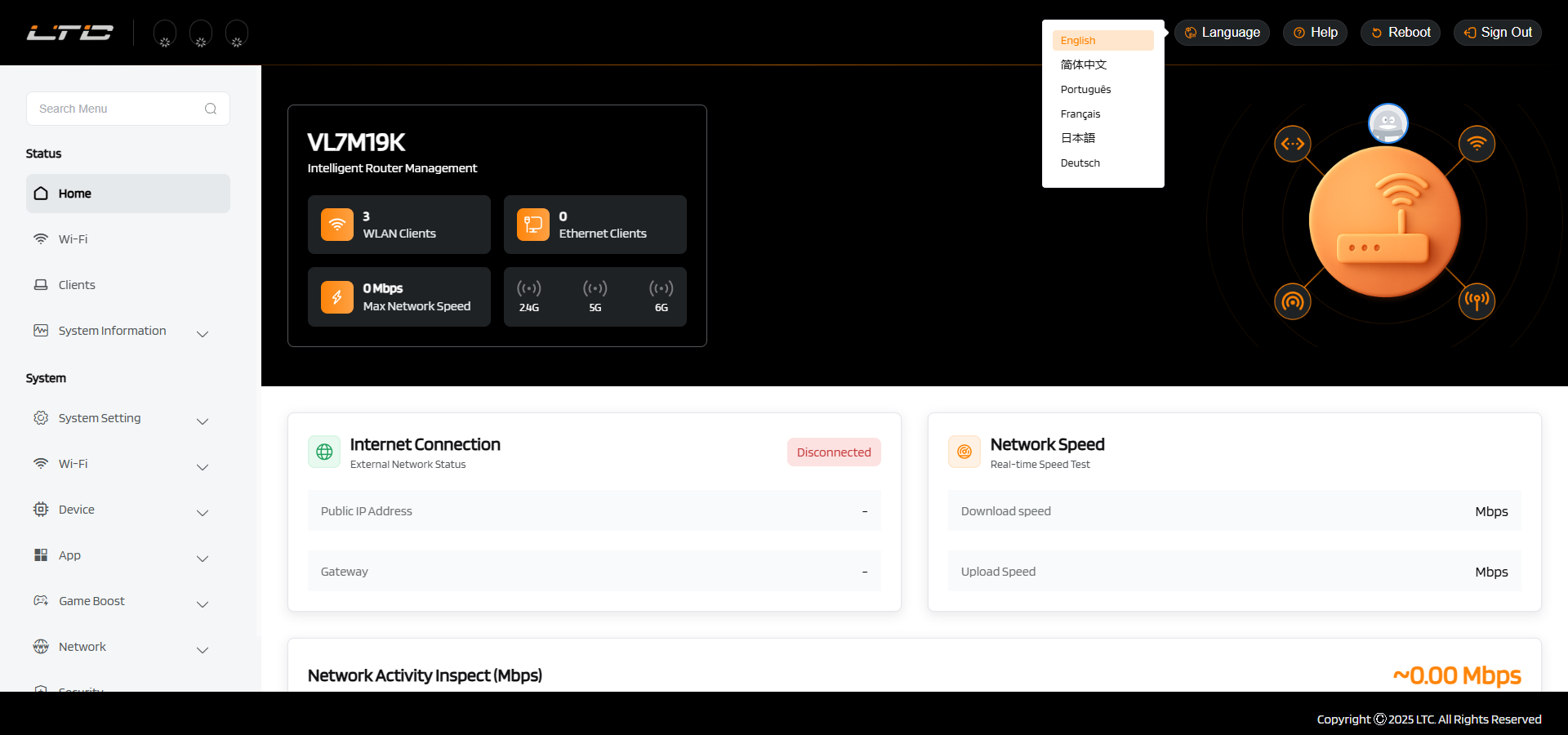
(1) Language Setting
You need to choose the display language of the Admin Panel. Currently, our routers support English, 简体中文, Français, Deutsch, Português and 日本語.
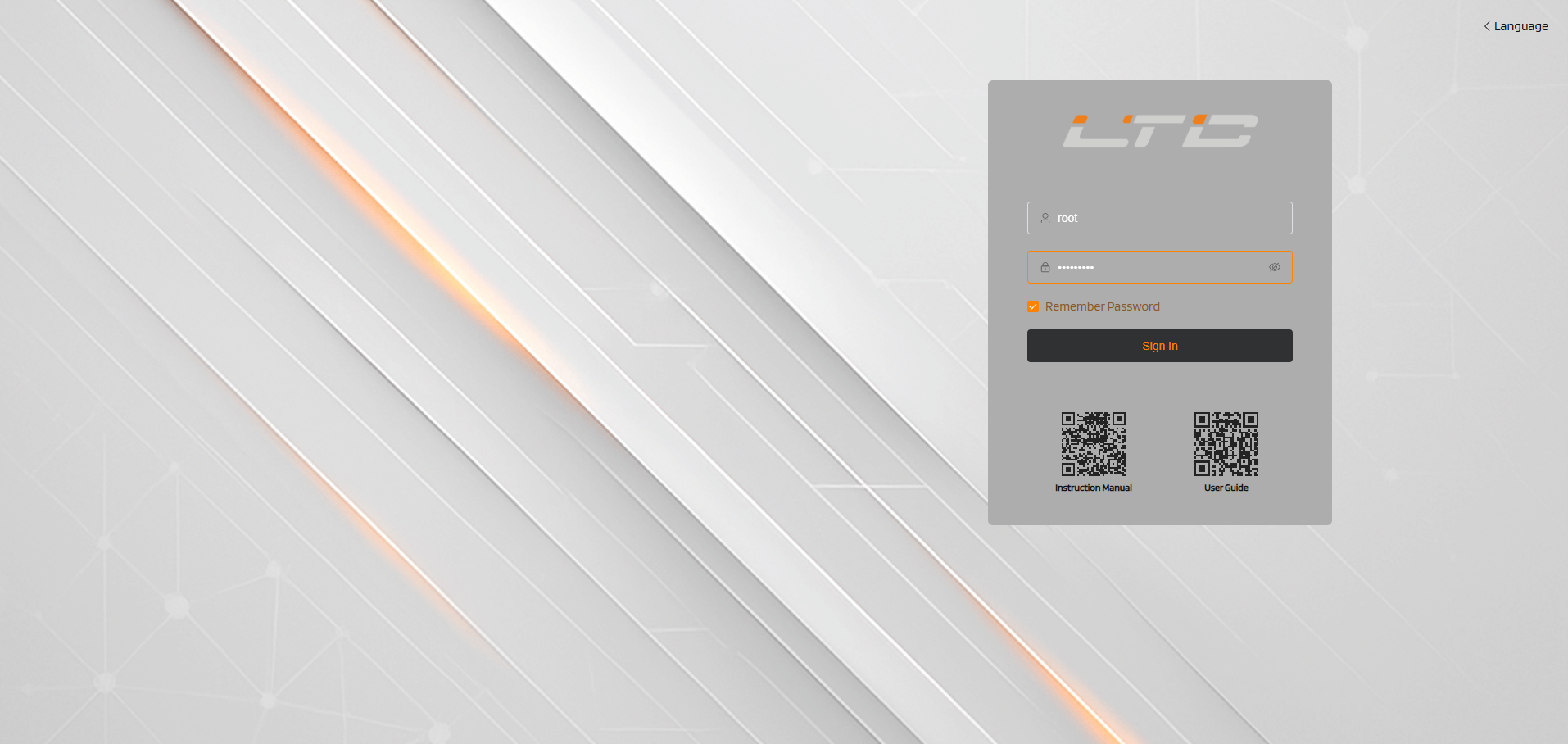
(2) Admin Password Setting
There is no default password for the Admin Panel, you have to set your own password, support strong and weak password settings.
The strong passwordrules are: password length must be 8-63 characters, including numbers, uppercase letters, lowercase letters, and special characters/underscores.
The weak passwordrules are: password length must be 8-63 characters, and the "Allow weak password" button must be checked.
After setting the password, click Submit to proceed.
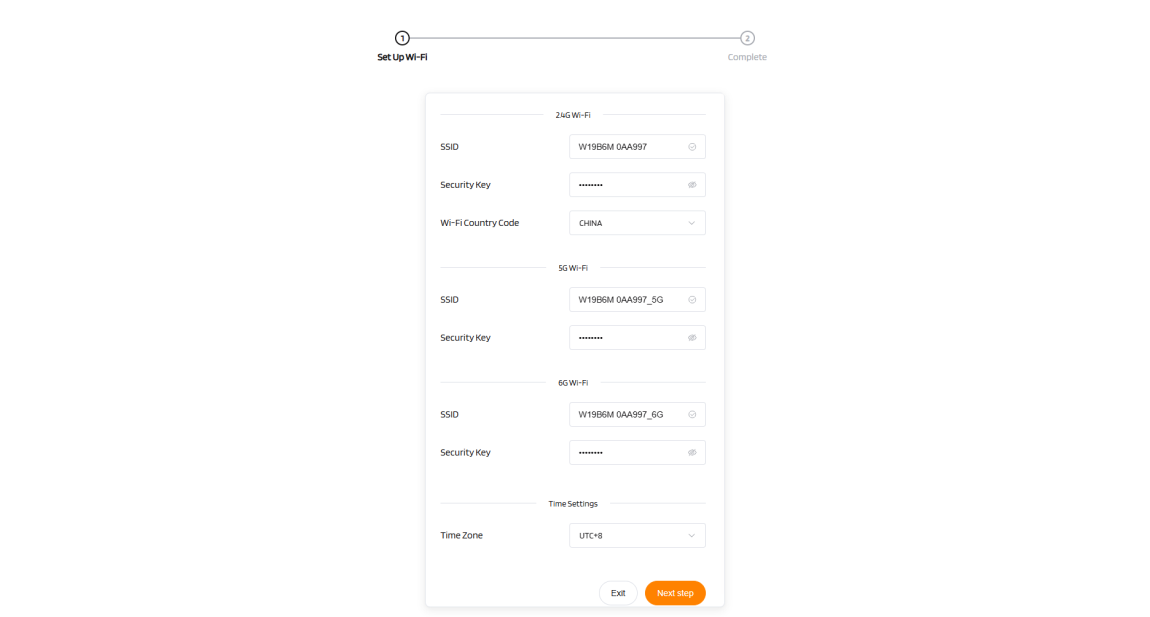
(3) Bootstrap page
You can set the Wi-Ficountry code and time zone according to your country or region on the navigation page.
(4) Admin Panel
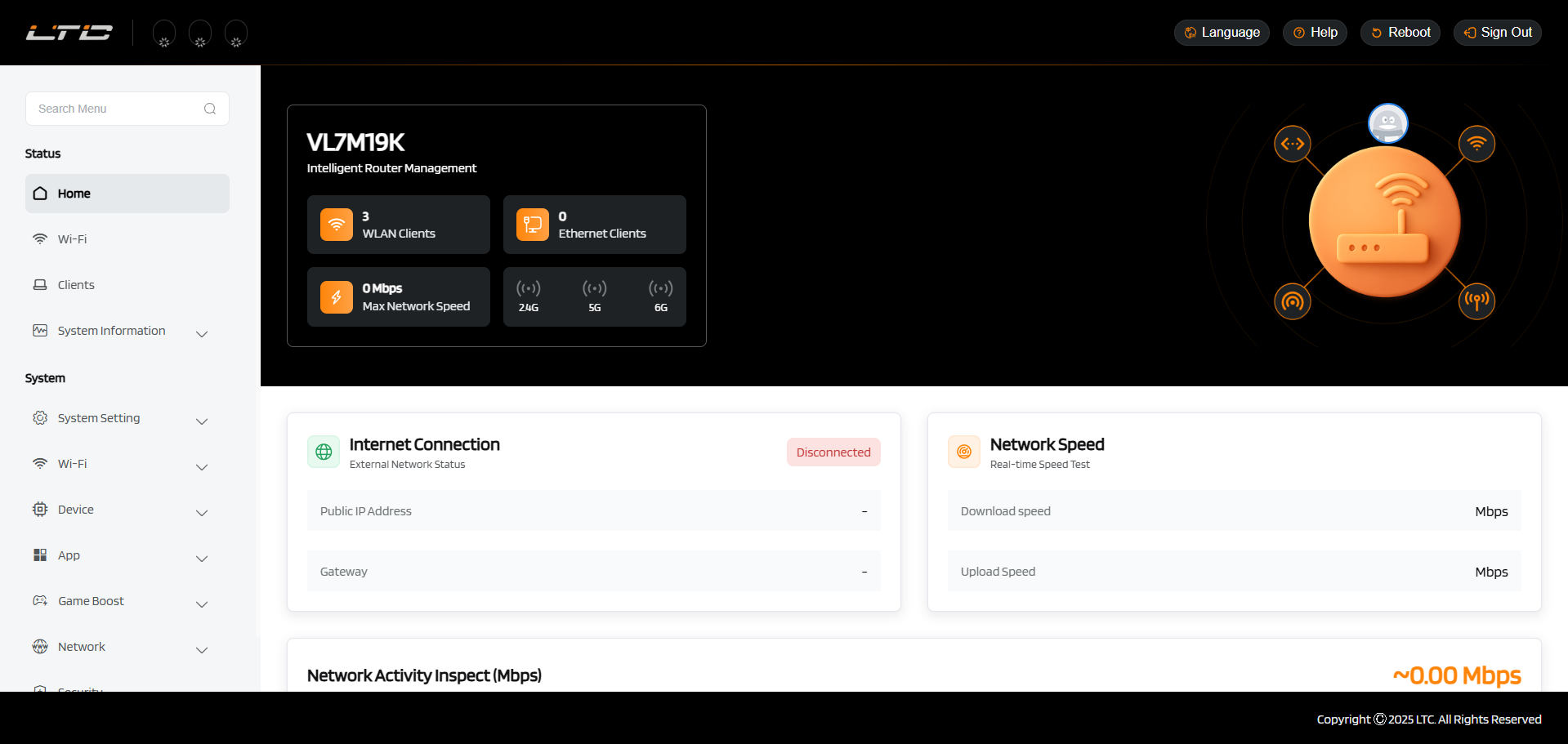
After the initial setup, you will enter the web Admin Panel of the router. It allows you to check the status and managethe settings of the router.
Wi-Fi
The Wi-Fi page allows you to configure detailed settings for the 2.4 GHz, 5 GHz, and 6 GHz Wi-Fi networks. You can enable or disable Wi-Fi, customize the network name (SSID), set security mode and password, control SSID visibility, select Wi-Fi mode, bandwidth, and channel.
Additionally, you can adjust transmission power (dBm) and enable client isolation for improved network security. The device also supports MLO (Multi-Link Operation) and MESH networking, enabling simultaneous use of multiple wireless links to deliver higher bandwidth and more reliable connections.
To set up Wi-Fi, refer to Wi-Fi.
Clients
The Clients page displays connected devices’ name, IP, MAC address, and connection type. You can limit bandwidth, set high priority, and ensure optimal performance for key devices.
To set up Clients, refer to Clients.
System
The System page provides a comprehensive snapshot of your router's current status and operational metrics.
On this page, you can view:
- System Status: Monitor real-time CPU average load, memory usage, and system temperature to assess performance and identify potential bottlenecks.
- Network Information: View key network parameters such as WAN connection status, public IP address, DNS server, and default gateway to understand your current network setup.
- Wi-Fi Status (2.4GHz / 5GHz / 6GHz): Check the number of connected devices, signal strength, and operational status for each band to optimize wireless coverage and performance.
-
Router Diagnostics:
Ping: Send probe packets to a target (e.g., website or IP address) to test network connectivity and latency, quickly verifying whether access is working.
Trace (Traceroute): Display the full path of data packets from your device to the destination, listing each network hop, aiding in identifying where delays or connection drops occur.
To set up System, refer to System.
Device
The Device page allows you to configure network connectivity and remote access settings. Key features include:
- Static Routing: Manually define network paths for precise traffic control, ideal for multi-subnet, VLAN, or remote access scenarios.
- DDNS (Dynamic DNS): Automatically map your changing public IP to a fixed domain name, ensuring reliable access to internal services such as cameras, NAS, or remote desktop.
- UPnP (Universal Plug and Play): Automatically open required ports for compatible applications (e.g., gaming, video calls), improving connectivity with minimal configuration.
Tip
To set up Static Routing, please refer to Make Your Camera Always Online with Static Routing Table.
To access Your Home Security Camera Anytime, Anywhere with DDNS, please refer to - Access Your Home Security Camera Anytime, Anywhere with DDNS
To make Xbox Online Games Run Smoothly by UPnP, please refer to Make Xbox Online Games Run Smoothly by UPnP
APP
The App page serves as the functional expansion hub of the VL7M19K router, providing a centralized interface for managing a suite of pre-installed network applications and services,including: AdGuard Home, Samba Configuration, Package Management, ZeroTier and VPN Services. Through this module, users can quickly enable and configure various practical functions to achieve comprehensive network security, efficient device management, and seamless remote access across all connected devices.
To set up APP, refer to APP.
Game Boost
The Game Boost page provides a series of network functions and policy configurations specifically optimized to enhance your gaming experience. From this page, you can enable and manage various tools for improving network performance, including Open NAT configuration and intelligent traffic acceleration services based on LagoFast technology, effectively reducing latency, minimizing packet loss, and improving connection stability.
To set up Game Boost, refer to Game Boost.
Network
The Network page provides comprehensive configuration management for the router's core network architecture, covering LAN settings, WAN mode selection, link status detection, and hotspot sharing. It serves as the critical entry point for building a stable, efficient, and flexible network environment. This set of functions is suitable for home networks, small offices, or high-reliability network deployment scenarios, ensuring that the network remains in optimal operating condition at all times. Subsequent subsections will detail the configuration methods and best practices for each network parameter.
To set up Game Boost, refer to Network.
Security
The Security page provides comprehensive security and system management functions for the router, covering key settings such as firewall policy configuration, parental control, account and password management, operation log viewing, system upgrade and restoration. It serves as an essential gateway for ensuring a secure and stable network environment, preventing unauthorized access, and maintaining long-term reliable operation of the device.
On this page, you can view:
Firewall
The Firewall page provides the router's core network access control functions, enabling fine-grained management of data traffic between internal and external networks, guarding against unauthorized intrusions and malicious attacks, and ensuring the security of network devices and data.
To set up Firewall, refer to Firewall.
Parental Control
The Parental Control page provides comprehensive internet behavior management functions for devices on your home network, helping parents effectively control the content and time of internet access for children or designated users, thereby creating a healthy and secure digital environment for growth.
To set up Parental Control, refer to Parental Control.
Password
The Password page lets you manage device login credentials, including setting a new password, enabling weak password use, and configuring access control rules to allow or block specific source addresses. You can also set remote network parameters, such as the number of remote ports, HTTPS port count, and enable SSH for secure access.
To configure password and access settings, refer to Password.
LOG
The LOG page provides comprehensive access to various system-generated logs, including web logs, system logs, kernel logs, crash logs, and cloud platform logs.
To set up LOG, refer to LOG.
Upgrade
The system supports two upgrade methods: Manual Upgrade and Automatic Upgrade.
- Manual Upgrade: You can Drag and drop files to upload file upgrades.
- Automatic Upgrade: Once enabled, the system will automatically check for the latest firmware version at regular intervals. When an update is available, it will prompt you to initiate the upgrade with a single click on the “Auto Update” button—no manual steps required.
To set up Upgrade, refer to Upgrade.
Factory Reset
Revert the router to factory default settings. All your settings, applications and data will be erased.
To set up Reset,refer to Revert Firmware.
Time Settings
The Time page enables you to set the time zone, sync with client time, and configure up to 4 NTP servers for precise and automatic time synchronization.
To set up Time, refer to Time.
Other Settings
The Other Setting page enables you to remotely connect to the device via the Telnet protocol for advanced configuration and troubleshooting. You can enable or disable Telnet access, set connection limits, and ensure secure access only from trusted networks.
To learn more, refer to Other Setting.